Search This Blog

Wednesday, December 21, 2022

RLS BASED ON SECURITY PRIVILEGES IN DYNAMICS 365


ACCESS LEVELS IN DYNAMICS 365

There are 5 different types of access levels in Dynamics.

  • Global: allows access to all of an organization’s records.
  • Deep: allows access to all records in their business unit andin subordinate units.
  • Local: allows access to all records in their business unit.
  • Basic: allows access to records they own or that are shared with them or their teams.
  • None: allows no access to records.

These access levels are given to users to perform their respective functionalities. In this blog, we’ll be looking at implementing RLS on roles which have Global, Local and Basic access levels. For more information on Dynamics’ Privileges, Access levels and Security, click here.

SECURITY IMPLEMENTATION IN POWER BI

In this blog, I will be focusing on the read privilege of Opportunity entity only as every entity has different read/write/update/delete privileges.

GETTING D365 ACCESS LEVELS USING FETCHXML

In a simple RLS scenario, we would be sourcing our data using OFeed but in order to get Access Levels from Dynamics we are going to use FetchXML. To see how to use FetchXML, click here.

I have used the following FetchXML snippet to get Access Levels data of users. To see how to implement it using Power Query, please refer to the link given earlier.
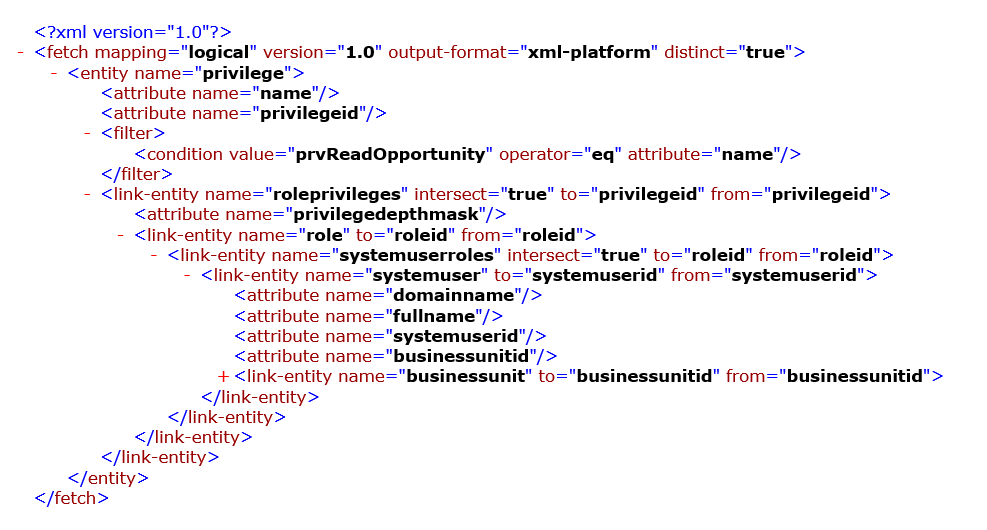
D365 Access Levels

The result gives us a table like the one shown below.

D365 Access Levels using FetchXML

  • Domainname: The email of the user associated with the business unit.
  • Business Unit: Name of the business unit
  • User: Full name of the user
  • PrvReadOpportunity: Option set for Read Privileges associated with the user. In this case,
    • 1 is for User-only access
    • 4 is for Business unit level access
    • 8 is for Organization level access

DATA MODEL

I’m using opportunity entity only for demonstration purposes and the security roles later defined will be featuring security on Opportunity entity only to keep things simple.
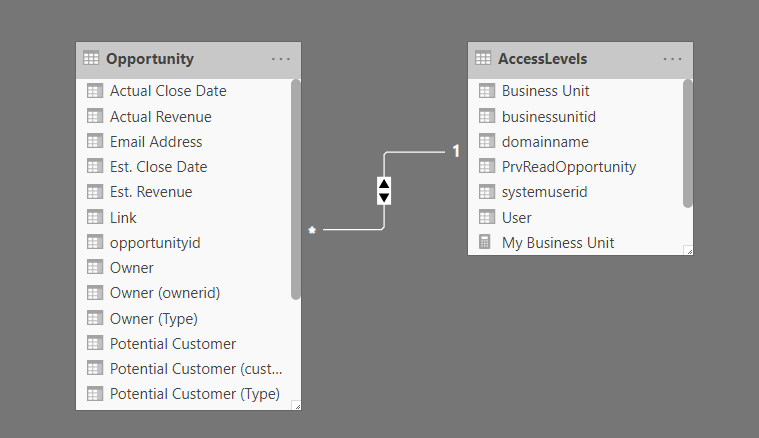
Opportunity entity

CONFIGURATION IN POWER BI DESKTOP

DEFINING SECURITY ROLES:

Here I have defined four different user roles in Power BI Desktop as listed below:

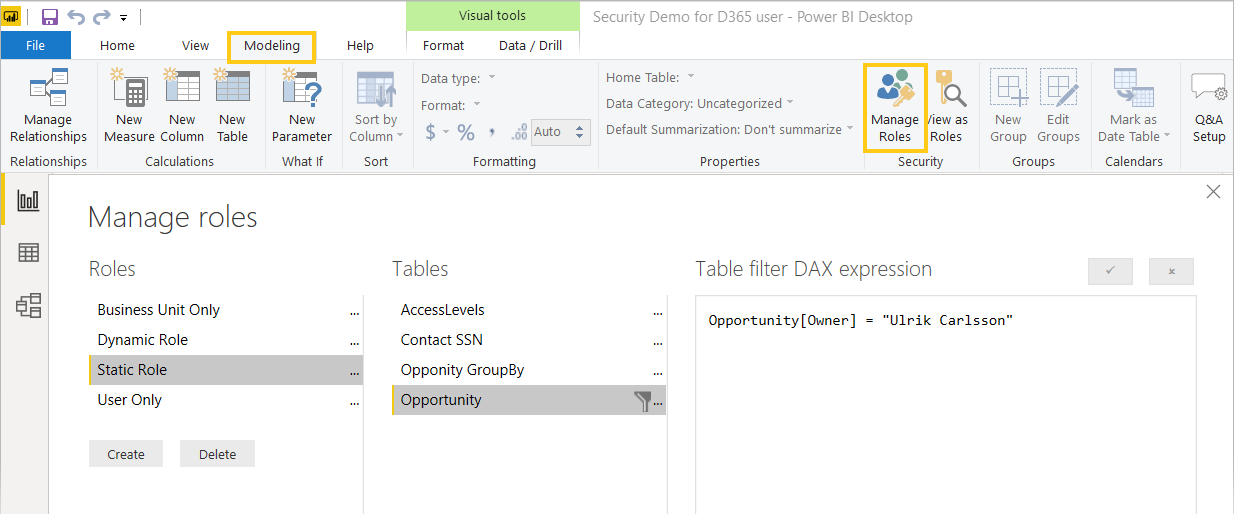
  1. Static role: where the users can only view data with pre-defined filters placed on it. The data will be shown irrespective of the logged-in user.
    • Go to Modeling -> Manage Roles

Manage Roles

  1. User-only role: where the logged in user can see their corresponding opportunities data.
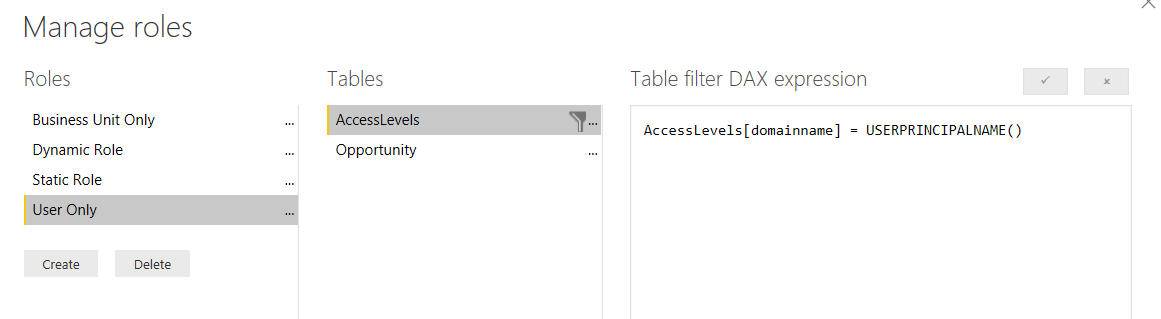
User-only role

  1. Business unit only role: where the logged-in user can see opportunities data of any user sharing the same business unit. E.g. User A has access to Business Units B1 & B2, the resulting report will be showing opportunities data related to the units B1 & B2 of all users, so that the data would be specific to these two business units.
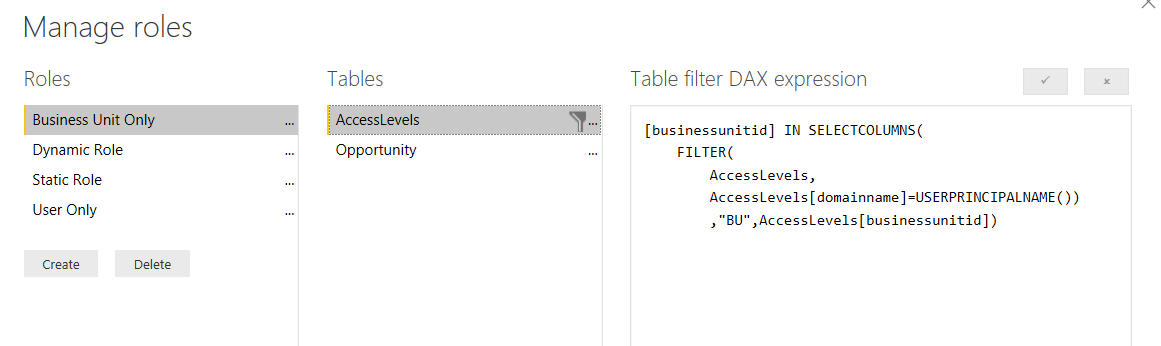
Business unit only role

  1. Dynamic role: where the logged-in user will be dynamically shown the data according to the security role assigned on CRM.
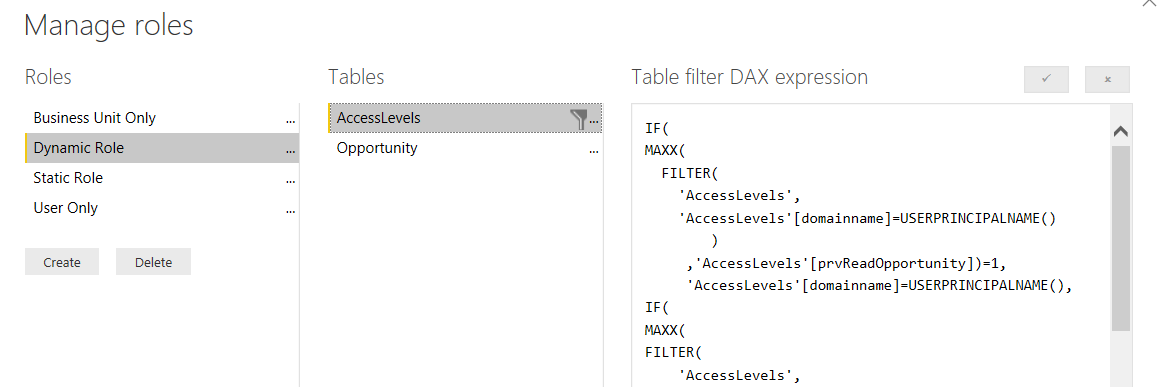
Dynamic role

As the DAX for the Dynamic role is a bit lengthy, I’ll list it out here to help you out.
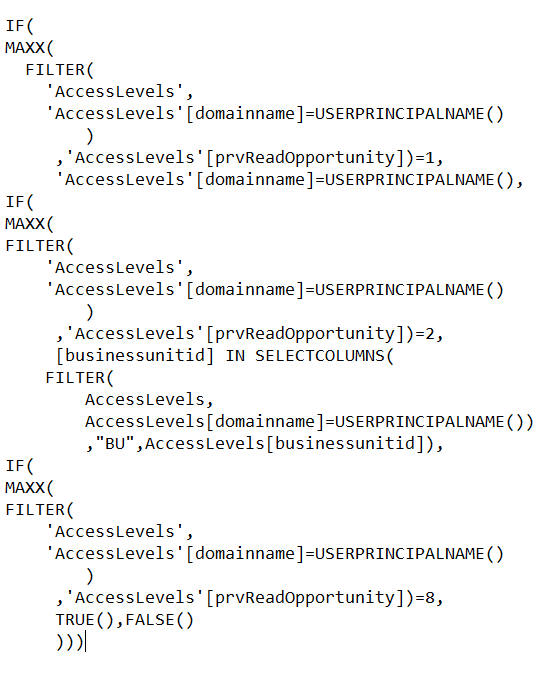
DAX for the Dynamic role

TESTING SECURITY ROLES ON POWER BI DESKTOP

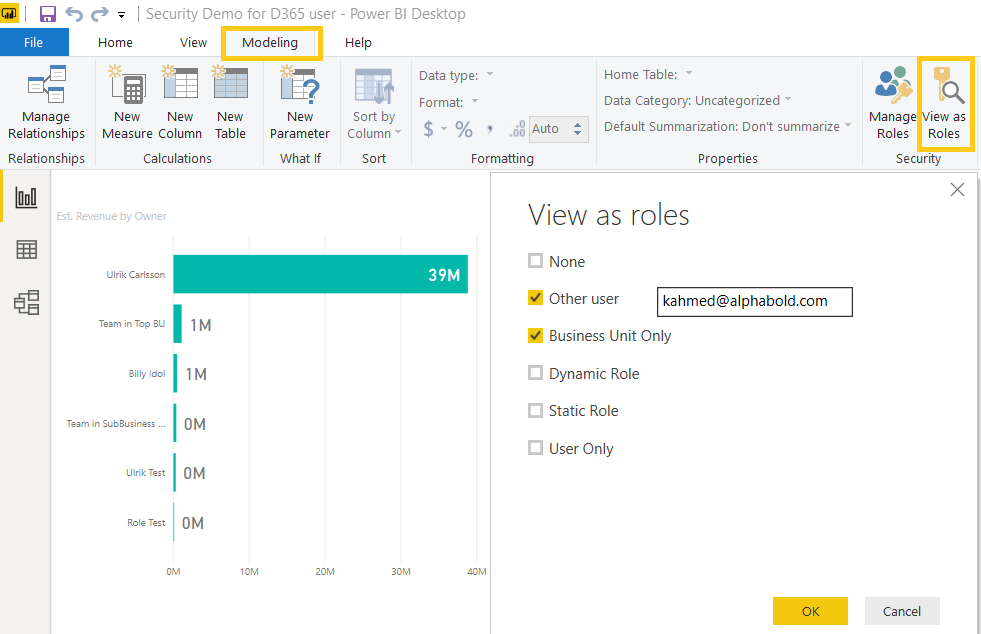
You can test the roles you have created in Power BI Desktop.

  • Click on Modeling -> View as Roles

Testing Security Roles

DEPLOYMENT AND ROLE ASSIGNMENT ON POWER BI SERVICE

  1. Publish the report using Publish icon in Home
  2. Upon success, go to Power BI service and navigate to the workspace you have published it in.
  3. Go to Datasets -> (Your Published report) -> Security and add the users in their specific roles. Note that you can’t add users from outside of your organization.
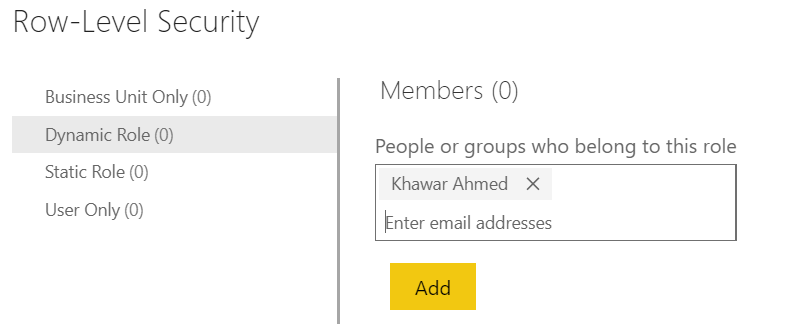
Deployment and role assignment

Remember: RLS only works for users with Viewer role of the workspace your report has been published in. Find out more on Power BI Workspace related user roles over here.

CONCLUSION

Power BI eases our job of maintaining the same security across platforms. Using RLS, we can keep data from being exposed to unauthorized users and can inherit security privileges already created on Dynamics 365.

Monday, December 19, 2022

Top Platforms to Integrate with Microsoft Dynamics 365

One of the key aspects of Microsoft Dynamics 365 is how quickly it can be integrated with other Microsoft products as well as a variety of third-party applications without requiring considerable configuration. Microsoft offers a number of APIs to make these integrations as simple as possible.

It is critical to integrate Dynamics 365 with other platforms in order to provide customers with a unified perspective. Since the integration does not require considerable configuration and can be simply implemented utilizing integrators and add-ons, it is suitable for both small and large businesses.

Integration like this is essential for Dynamics 365 to be a valuable business tool. Make use of this feature by integrating these useful platforms with your Dynamics 365 system if you’re trying to manage your business end-to-end:

1. Power BI

Every organization’s goal in this era of data overload is to analyze critical business, customer, and competition data for better decision-making. Microsoft’s Power BI is a key business tool that provides real-time information. Because Power BI and Dynamics 365 connect data from your CRM, ERP, financial software, and other systems, identifying trends, diagnosing problems, and making educated decisions becomes easier and more accurate.

With this integration, you can view dashboards and reports from Power BI on web pages if the Power BI visualization from the Portal Admin Center is enabled. Using Power BI capabilities, you can quickly study data and generate rich reports and dashboards. Here are some key features:

  • Users will also have access to dashboards and charts, which they will be able to engage with on a variety of devices.
  • You can embed dashboards and reports developed in a new Power BI workspace by enabling the “Power BI Embedded” service integration.
  • Automatically refresh data from Dynamics 365.
  • Power BI allows you to create reports and dashboards that you can share with others.

2. SharePoint

SharePoint is the ultimate collaboration and content management tool. Users can use Dynamics 365 to store, search, and share information, as well as establish a productive environment with safe access to the documents and data they need to make business decisions.

Users can save and manage documents in the context of Dynamics 365 for Customer Engagement application records by integrating Sharepoint. Additionally, you can:

  • Check the document in and out, examine the history, and change the document properties using Sharepoint’s document management features.
  • Since Sharepoint provides additional storage, users don’t have to worry about their Dynamics 365 instance running out of space.
  • Allow SharePoint documents with rights to be accessed by non-Dynamics 365 users. Store information about leads, opportunities, and services.

3. Marketing Automation

Integration with third-party tools is possible with Dynamics 365. With this integration, you can add an email marketing and marketing automation solution to Dynamics 365’s marketing features. You can integrate Dynamics 365 with any of the best marketing automation technologies that meet your needs and budget.

4. Office 365

You can improve customer relationship management by integrating Office 365 with Dynamics 365. With this Office 365 integration, users can increase their employees’ productivity by making their day-to-day tasks easier. You can more efficiently collaborate with your team across multiple devices. Thanks to the Outlook-Dynamics 365 interface, users can connect Outlook emails to contacts and opportunities associated with their Dynamics 365 data, create action lists for email responses and schedule them as tasks, and monitor email activity from any device. You can also:

  • Collaborate more effectively with your team across different devices with the Office integration.
  • With the Outlook App, you can generate leads directly from your inbox.
  • You can keep track of notes for leads and opportunities with One Note.
  • Without leaving Dynamics 365, you can communicate with your clients, colleagues, and team members in real-time.
  • Work in teams and collaborate more easily with Yammer.

 5. Outlook

Any company’s goal is to save time and sell more. Team productivity is revolutionized with this seamless interaction with Dynamics 365 and Outlook. This opens up a more accessible alternative for businesses to function more efficiently. When you have to log in to many applications to manage your emails, notes, and insights, it becomes tiresome. This integration eliminates the need for a second step, allowing users to:

  • Link Outlook emails to contacts and opportunities connected with their Dynamics 365 records automatically.
  • Make email response activity lists and assign them to tasks automatically.
  • Track email activity across all devices and include knowledge-based content in your emails.

6. Exchange

By integrating Dynamics 365 with Exchange,  you can sync all of your contacts, appointments, tasks, deadlines, and customer conversations in one location. Users can now send automatic emails straight from Dynamics 365, collaborate more effectively, access all emails, add Dynamics 365 contacts directly from email messages, and enable Exchange folder monitoring.

7. One Note

When you integrate One Note with Dynamics 365, you can store all of your thoughts, ideas, goals, and research in one place. When dealing with several leads or teams, taking notes is a common occurrence. It may be difficult to recover earlier conversations, opportunity details, quotations, or orders as a result of this. Users can now experience an interactive platform for their notes thanks to the integration. In addition, the user can:

  • Organize your pending leads in a better way.
  • To make it easier to lead, take notes for each opportunity.
  • For each new record, create a OneNote tab to which you can attach unstructured notes.

8. LinkedIn Sales Navigator

As a result of Microsoft’s acquisition of LinkedIn, the LinkedIn Sales Navigator tool is now completely integrated into Dynamics 365 CRM. Using the Dynamics 365 and LinkedIn Sales Navigator integration, you can explore LinkedIn profiles, save leads, set up alerts, and get notifications on changes to your lead’s profile.

9. Document Creation Tools

All of these may be created immediately in Dynamics 365 CRM, including proposals, quotations, other sales papers, and contracts. Using a document-generating tool to improve the productivity of your sales process can be extremely beneficial. By leveraging CRM data to pre-populate fields in your documents, you may send documents directly from CRM, prepare documents that are immediately logged to a CRM opportunity, and follow current progress at any time.

10. Business Central

Keeping your entire organization on the same page requires integrating CRM with your ERP solution. Microsoft’s existing ERP system, Dynamics 365 Business Central can be seamlessly integrated with Dynamics 365 CRM. This removes the need for human data entry, ensures data transfer accuracy, and facilitates supply chain and inventory management.

11. Custom Integrations

Dynamics 365 solutions provide a great deal of flexibility and include web APIs that make integrating with other systems a breeze. If there isn’t a pre-built integration that meets your needs on Microsoft’s AppSource, a Dynamics 365 partner can assist you in creating a bespoke integration for any solution you require.

12. ProjectPro

ProjectPro is the first Construction Management Software that provides real-time information about your construction company. It also aids in the organization of any information pertaining to your construction projects.

ProjectPro is ideal for any size firm, including those just starting out in the roofing industry. It allows you to manage your roofing contracts, track materials, and even communicate with team members quickly and easily. ProjectPro powered by Business Central can be seamlessly integrated with Dynamics CRM and other Microsoft Solutions to boost productivity and provide overall business insights.

Conclusion

There are numerous integration options and methods for utilizing the capabilities of Dynamics 365. However, there is something you should know if you want to get the most out of your Dynamics 365 system through integration. Integration with Dynamics 365 is easy. There is no need for large-scale configurations.

However, you’ll need a strategy if you want your integration to perform as planned. It would be great if you looked at how it will affect your existing and future business needs and figure out the best method to get the best results from your Dynamics 365 integrations. As a Microsoft Dynamics Gold Partner, we can help you determine the optimal integration choice for your present and future business needs. Drop us a line if you’d like to speak with our experts.


Top 11 Reasons why you should choose Microsoft Dynamics 365 as your CRM

Finding the right CRM for your business process is an essential step towards achieving your long-term strategic goals. Microsoft has taken its game up a notch by integrating ERP and CRM capabilities in Dynamics 365, enabling businesses to access Sales, Marketing, and Customer Service within the same application.

Microsoft Dynamics 365 is a powerful and highly scalable CRM solution. With extensive functionality, value, and flexibility, it is easy to see all of the advantages that Dynamics 365 CRM can bring to an organization that wants minimal configuration and ease of use to optimize business operations, as well as provide a fast return on investment (ROI).

Microsoft Dynamics 365 CRM is a great choice for organizations that need a capable CRM solution to enhance their sales, marketing, and customer support. It is also an ideal fit for small or large-scale organizations that need ‘out-of-the-box’ functionality. Dynamics 365 offers the following deployment options: on-prem, partner-hosted, or cloud-based. Whatever your preference, the solution can be deployed in a manner that is ideally suited to your business strategy.

Benefits of Microsoft Dynamics 365 CRM

It is fairly simple why businesses rely on Dynamics 365 over its competitors. Mentioned below are the advantages of Microsoft Dynamics 365 CRM:

The user interface is familiar and intuitive and ranks among the highest in user adoption.

  • Seamless integration with other Microsoft products, such as Outlook, Office 365, Skype for Business, SharePoint, Power BI, and PowerApps offers a huge advantage.
  • Its strong built-in tools such as LinkedIn Sales Navigator Application Platform (SNAP) and Relationship Assistant boost efficiency and productivity.
  • Its flexible architecture, implementation options, and pricing enable easy customization to tailor the system to meet the unique requirements of the business.

Microsoft Dynamics 365 CRM Capabilities

1. Enhanced Operational Efficiency

Microsoft Dynamics 365 CRM greatly enhances operational efficiency through standardization and streamlining of business processes. Its flexible workflow allows businesses to automate tasks and procedures in ways that people can use every day. Microsoft Dynamics 365 can relieve your team of repetitive manual tasks. You can create processes using workflows that reflect business rules to achieve the desired results.

For example, by using set criteria, you can qualify your leads, activate automatic email notifications, or automatically route sales leads to individual members.

2. Highly Customizable

Dynamics 365 offers a range of modules and built-in tools for workflows that can be used to automate rule-based tasks across sales, marketing, customer support, field service, and more.

It also allows you to modify the workflows to meet your unique requirements in the case that the pre-built tools don’t exactly solve your problem. But that’s not everything you can customize. It offers flexible architecture, deployment options, and pricing levels to tailor the platform according to your budget, team size, and KPIs.

3. Targeted Marketing Campaigns

Dynamics 365 CRM ensures that you are always in touch with the right customers. It provides a marketing automation tool that simplifies processes such as the creation of leads and client lists, campaign creation targeting relevant prospects, evaluation of outcomes, and follow-up execution.

4. Right information to the right people

With Microsoft Dynamics 365 partner you have the tools that assure that correct information is always provided to the concerned person through mobile, web, or MS Outlook. End-users always have access to accurate details at all times.

5. Simplified service scheduling

One of the key aspects of providing a great customer experience is making sure that you never let your customer down by missing a service call or an appointment. Availability at all times is of great importance. Dynamics 365 provides streamlined service scheduling and ensures your customers are always satisfied.

Dynamics 365 CRM provides a consolidated, all-in-one view of all client service requests and calendars, allowing users to easily match the right service experts to a particular customer.

6. Seamless Integration with Other Microsoft products

Other Microsoft products, like the entire Office 365 suite can be easily integrated with Dynamics 365. These integrations allow businesses to switch from Dynamics 365 to Outlook for communication, to Power BI for data analytics, and SharePoint for documentation. It also leverages applications such as Word and Excel. Such deep integration capabilities lead to enhanced productivity and bring unmatched benefits.

7. Better Communication

Microsoft Dynamics 365 facilitates better communication so everyone can be productive and efficient both in the office and on the go. Data can be filtered so that you have access to only the information that you require like sales figures or meeting updates. With add-ons like free mobile applications with Dynamics 365 license and support for the cross-web browser on multiple devices, your workforce can be productive regardless of wherever they work.

8. Improved Customer Service Experience

Dynamics 365 collects vast amounts of relevant data about each customer. It analyzes the websites visited by individuals, how they interact with brands, which communities they are a part of, and much more. The BI tool identifies data points that cannot be quantitatively evaluated but are still extremely crucial to the sales process such as customer sentiments, purchase habits, and brand loyalty.

This valuable information helps customer service executives handle interactions meaningfully. With easily accessible data, reps can better connect with customers and suggest personalized solutions.

9. Regular Updates

Microsoft invests vast amounts of resources in Research and development for Dynamics 365. Continuous upgrades and advanced functionality helps businesses stay on top of their game.

10. Improved Productivity

With Dynamics 365, your workforce can access just about any type of data they need. This allows employees to make smarter, more informed decisions since they have all the tools and insights at their disposal. Instead of accessing ERP, CRM data, and Office applications individually, employees can seamlessly find everything on one platform, leading to a boost in productivity and efficiency.

11. Choice of Deployment

By choosing the deployment option (on-prem, cloud-based, partner-hosted) that best suits your budget, resources, and business needs, you can effortlessly and easily transition to Dynamics 365.


Dynamics 365 Implementation FAQs

How much time does it take to complete dynamics 365 implementation?

For a medium-size company (300-500 Employees) and requirement includes finance, sales, supply chain, purchasing, and inventory management then it takes around 8-9 months for end-to-end implementation of Dynamics 365. This time varies based on the business’s customization requirements and deviations from standard Dynamics functionalities. Dax has generic ready to use Dynamics solutions like “Product Dimension Relabeler” that can help in saving huge amount of time during implementations. Connect us today if you want to assess implementation time based on your business requirements.


What are the benefits of Implementing Dynamics 365?

Some of the key benefits of using Dynamics 365 ERP are:  

1-Integration with Microsoft Applications like SharePoint, MS Teams, Outlook, MS Office, Dynamics CRM and more. 

2-Dynamics 365 can be easily customized as per business requirements so that AS-IS business process can be mapped better and made efficient.

3-It’s a scalable application. It is a cloud based application and can be scaled as per business use.

4-It is an open secret to business success as it helps in making informed decisions due to real-time data reports.

5-Multidimensional time-sensitive reports can be generated. Overall business reporting becomes robust and critical while making strategic decisions.

6-Automates mundane time-consuming tasks. 

7-Reduces the chance of manual errors and improves delivery speed.  

How will Dynamics 365 be licensed? How to obtain Dynamics 365 Licenses?

User-based licensing system is used in Dynamics 365 licensing. Number of users allocated with license are on the basis subscription you have with Microsoft. Dax Software Solutions is a Microsoft Gold Partner helping clients in obtaining licenses. You can contact us to understand your licensing requirements. 

Can I implement Dynamics 365 for my business? 

Microsoft Dynamics 365 is a must-have tool for any scalable business. There are several modules in Dynamics ERP that can be implemented as per priorities. Generally, businesses start with Finance module implementation and then extend this module to sales, inventory, SCM etc. 

Which ERP system is better for new implementation: Microsoft Dynamics 365, SAP, Oracle ERP?

Microsoft Dynamics 365 is better for medium to large sized companies due to its flexibility, scalability, integration with Microsoft applications and ability to support remote working environment. 

How much will it cost me to implement Microsoft dynamics 365?

The cost of any project depends on the business size and the type of project. Implementation project costs have Licensing costs and implementation costs as per module to be implemented and the number of business requirements. AMS (Application Management and Support) services can be subscribed monthly, quarterly and yearly. For details click here. 


Wednesday, December 14, 2022

Enhance security in Dynamics 365 CRM using AAD Security Groups

 Dynamics 365 CRM has some security features which integrates Dynamics 365 with Active Directory (AD) Groups. AD Groups can be used to grant and restrict access to a Dynamics 365 environment which enhances security as well as simplifies the process of adding users. As is the case with AAD security teams, users get automatically added to the teams as and when they login in to CRM.

In order to create team of type AAD security group in CRM, we need to first create a group in Azure Portal following below steps:

1. Login to the Azure Portal using a Global administrator account for the directory and select Azure Active Directory as shown below.

image

2. On Azure Active Directory Page select Groups.

image

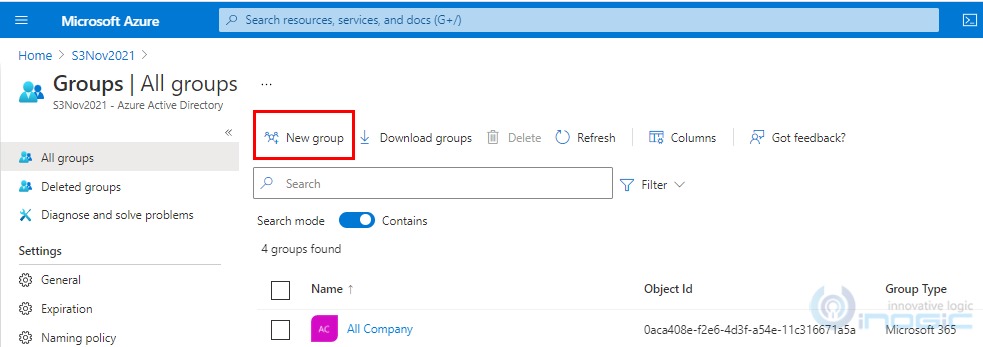
3. Click on New Groups.

image

4. New Group pane will appear. Fill in all the required fields and click on create.

image

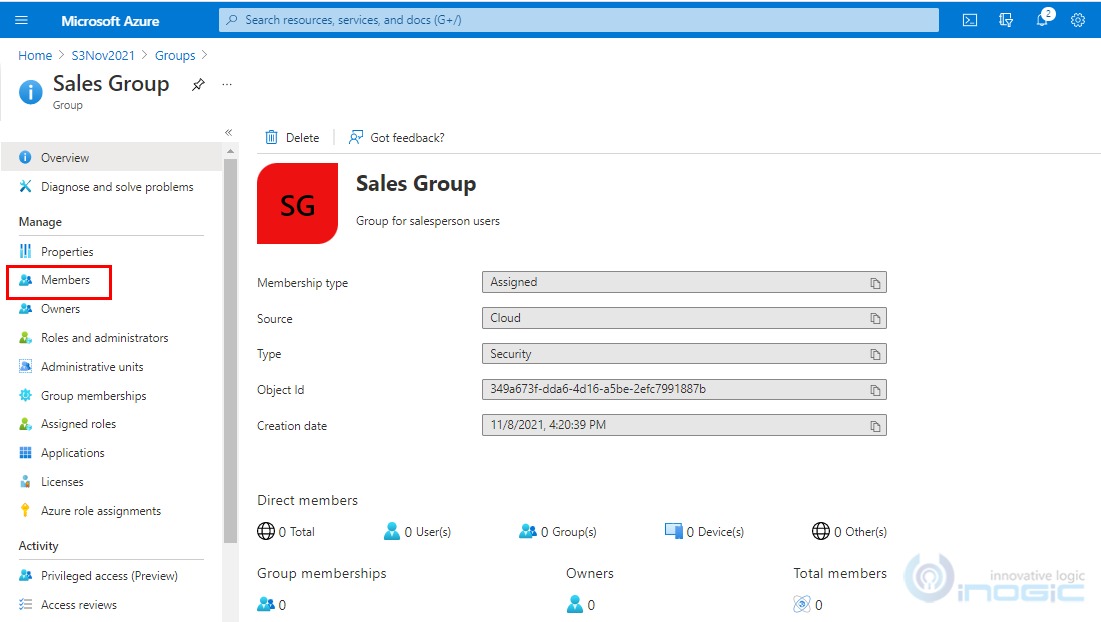
5. Open the Sales Group and then click on

image

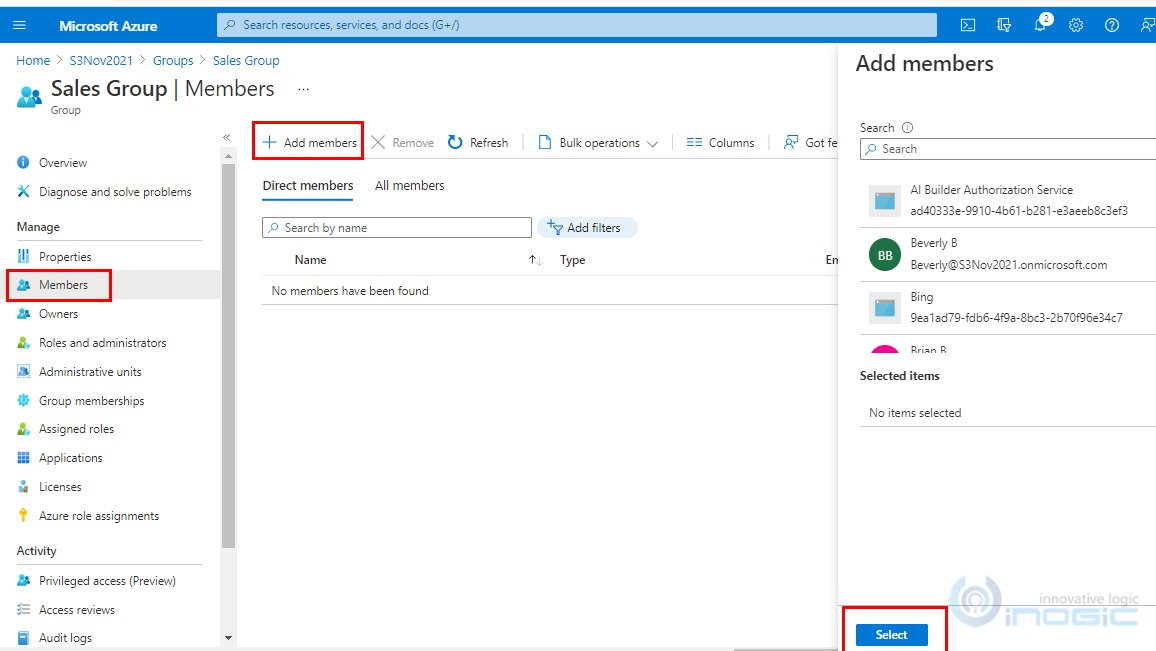
6. Click on Add Members, select the members (License users in CRM having no individual security role) that you want to add in the group and then click on Select button.

image

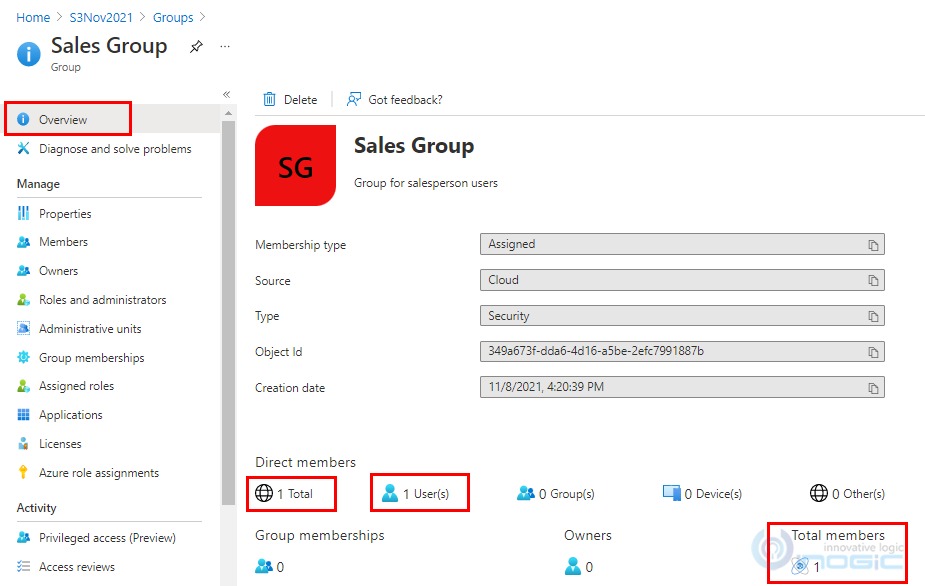
7. On click of Group Overview, you will be able to see the number of members added in the group.

image

Once the group is created in Azure Portal, we can create team of type AAD Security groups in CRM.

To create Team of type AAD security in CRM follow below steps:

1. Login to the CRM environment as a Global Administrator.

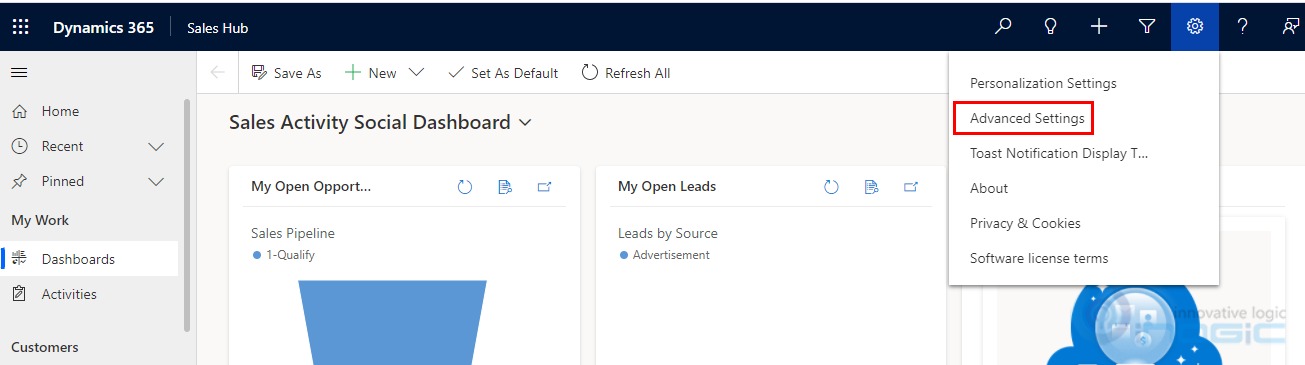
2. Navigate to settings icon and click on Advanced Settings.

image

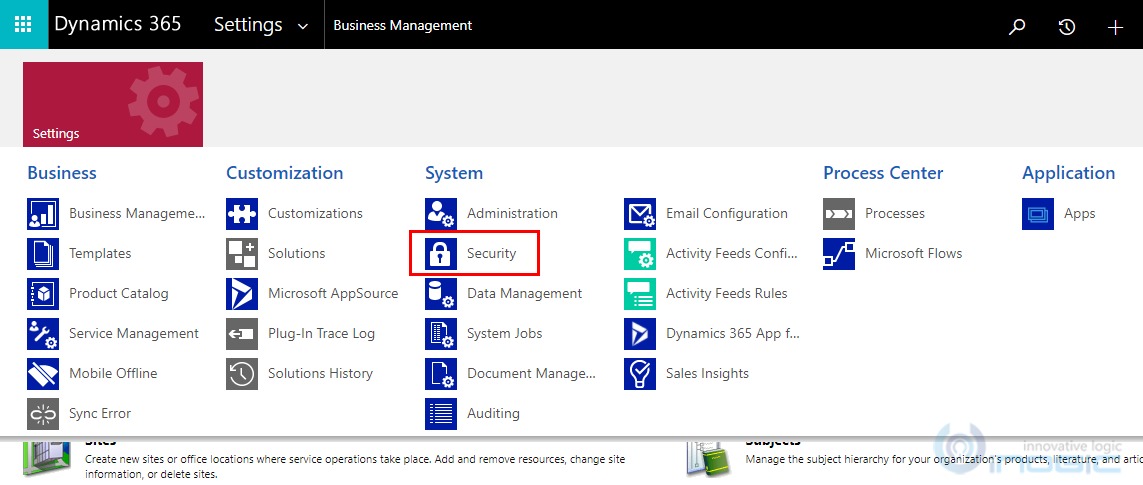
3. Under settings select Security.

image

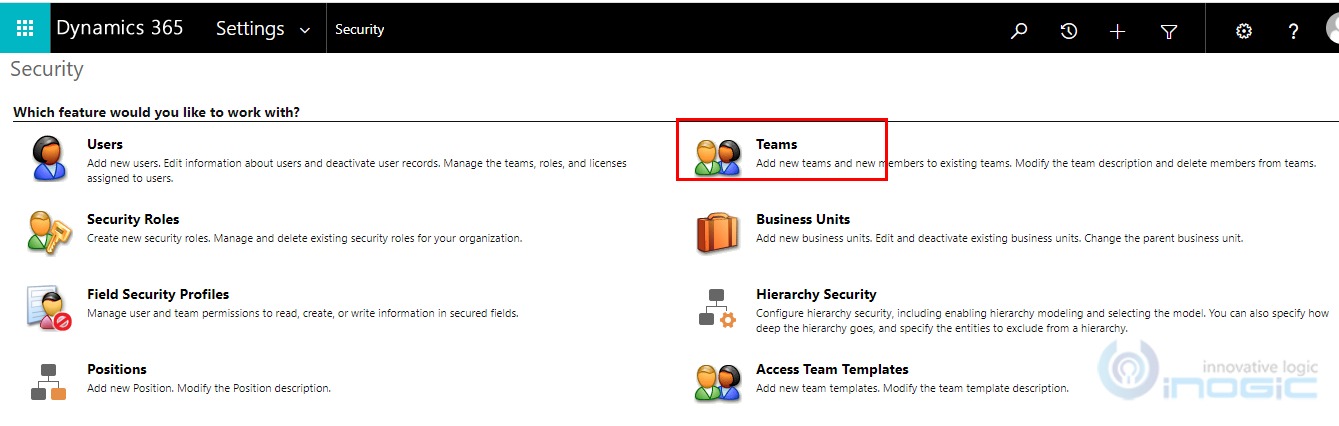
4. Under security, select Teams.

image

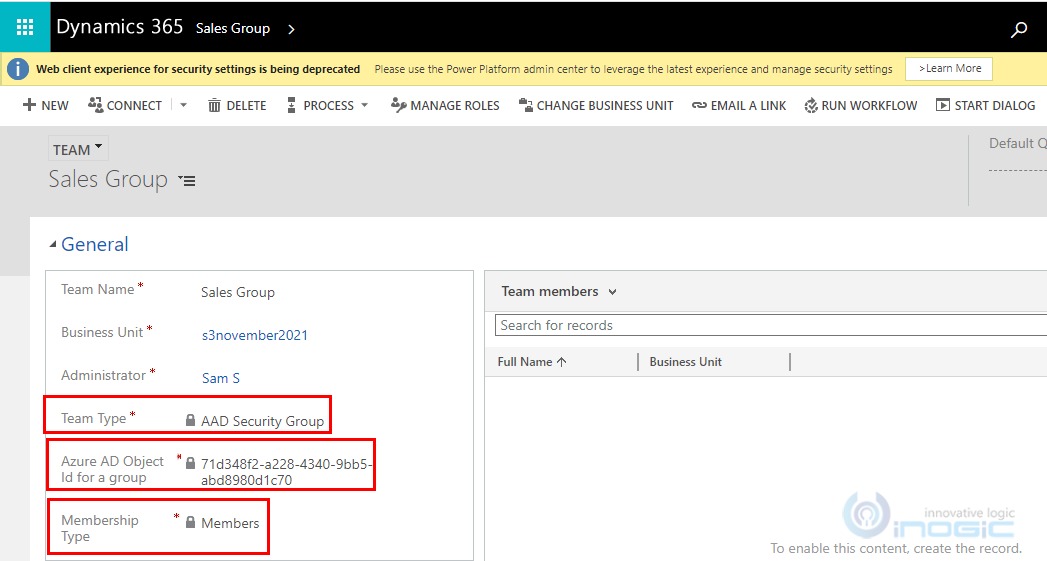
5. Click on +New and enter all the required fields.

image

Team Name – Provide valid name for the Team.

Business unit – By default, root business unit is selected. You can select the Business unit as per your business requirement.

Administrator – User having System Administrator rights needs to be selected.

Team Type – Select AAD Security Group.

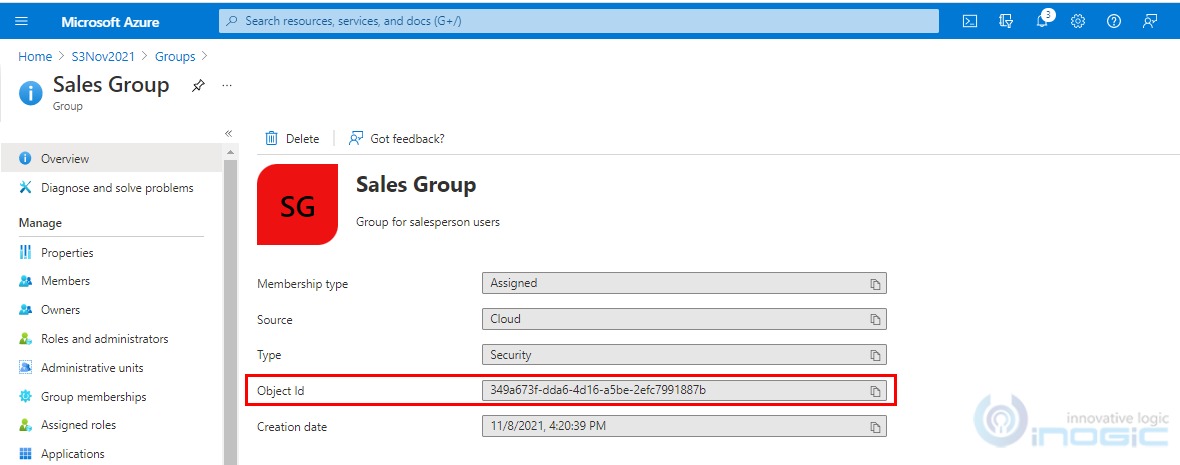
Azure AD Object Id for a group – This field will be visible on selection of AAD security group in Team Type and the value to enter in this field can be found on the Groups Overview page of Azure Portal.

image

Membership Type – Select the option Members.

Below are the options available for the Membership Type field.

      • Members and guests
      • Members
      • Owners
      • Guests

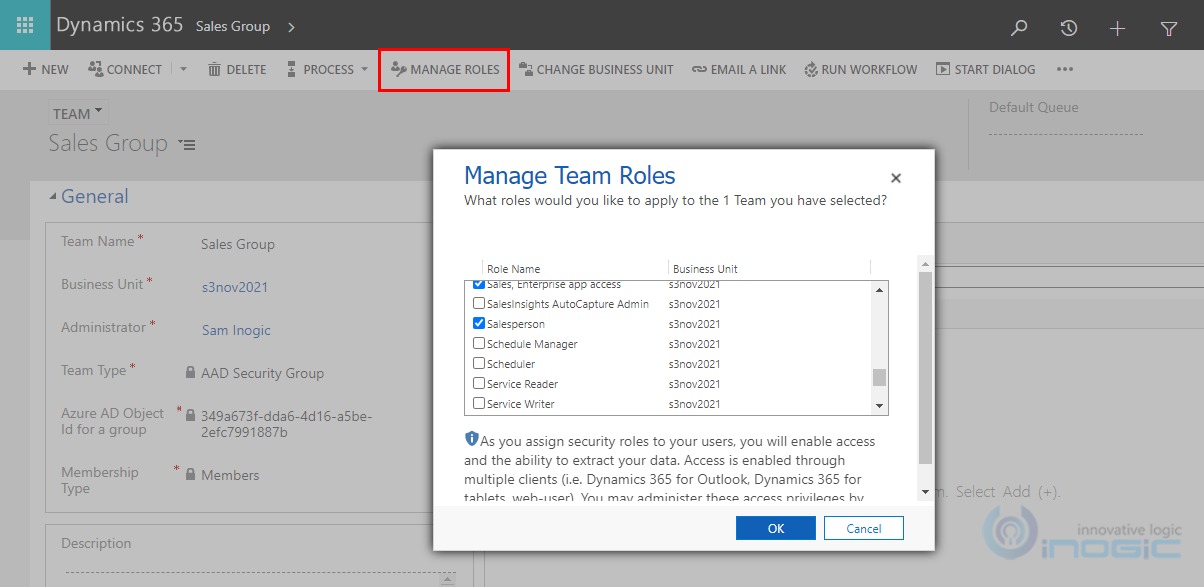
6. Click on Save. Once the Team gets created, assign a security role to the Team by clicking on Manage roles.

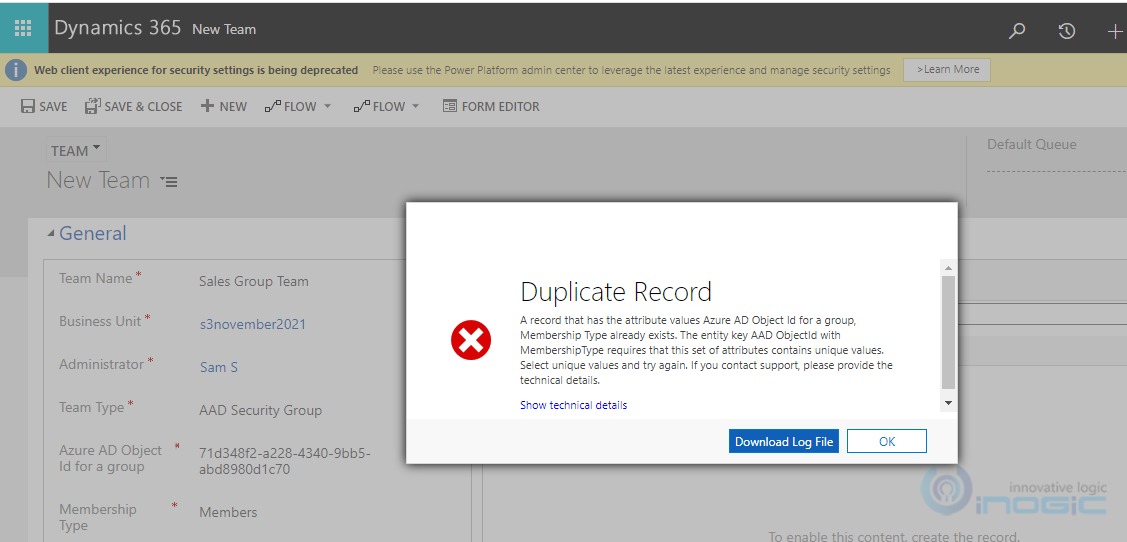
Note: Duplicate Membership Type Teams cannot be created for same Azure AD Object Id.

image

image

Once a group team is established and created in an environment with a security role, any licensed Dataverse users who are added to the Azure AD group can immediately access the environment.

  • Note: The list of team members listed in each group team only displays the user members who have accessed the environment.This list doesn’t show all the group members of the Azure AD group. When an Azure AD group member accesses the environment, the group member is added to the group team. The team member’s privileges are derived dynamically at run-time by inheriting the group team’s security role. Since the security role is assigned to the group team and the group team member inherits the privileges, the security role is not assigned directly to the group team member. Due to the team member’s privileges being derived dynamically at run-time, the team member’s Azure AD group memberships are cached upon the team member’s log-in. This means that any Azure AD group membership maintenance done on the team member in Azure AD will not be reflected until the next time the team member logs in or when the system refreshes the cache (after 8 hours of continuous log-in).

As seen in the above example we selected Members as the Membership Type. Similarly for each Azure AD group, the administrators can create separate group teams with the suitable Membership Type based on the Azure AD group consisting of Members, or Owners, or Guests, or Members and Guests and assign respective security roles to these teams.

Let’s have a look on how to add guest in Azure Portal.

1. Login to Azure Portal as a global administrator.

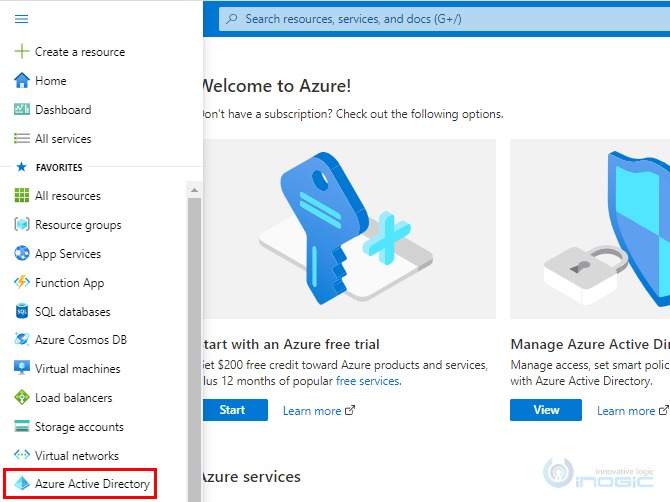
2. Navigate to left pane and select Azure Active Directory.

image

3. Under Manage, select users.

image

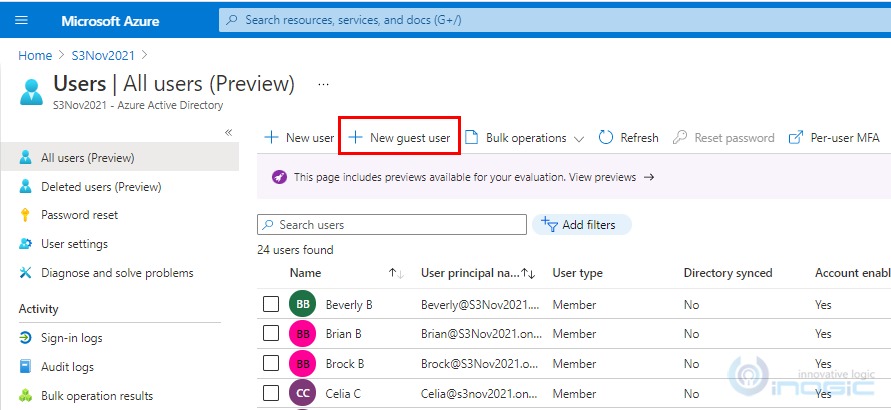
4. Click on +New guest user.

image

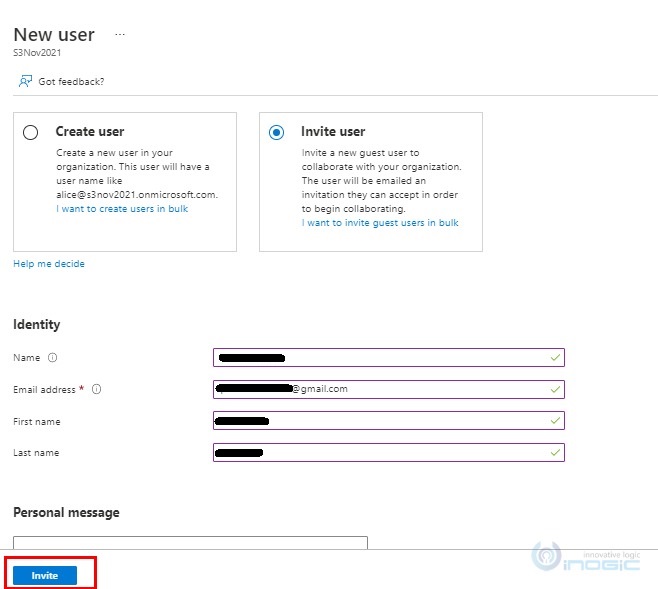
5. By default, Invite user option is selected. Fill in the required details and click on Invite

image

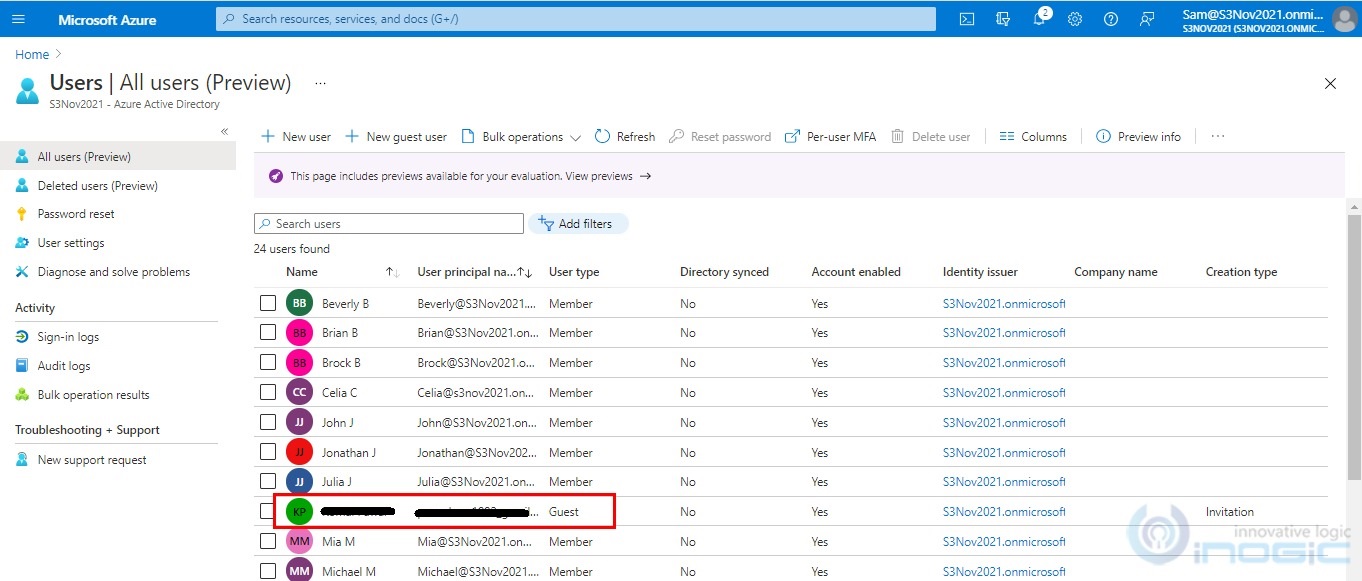
6. Once the invitation is sent, the guest user gets added in the directory with user type as Guest.

image

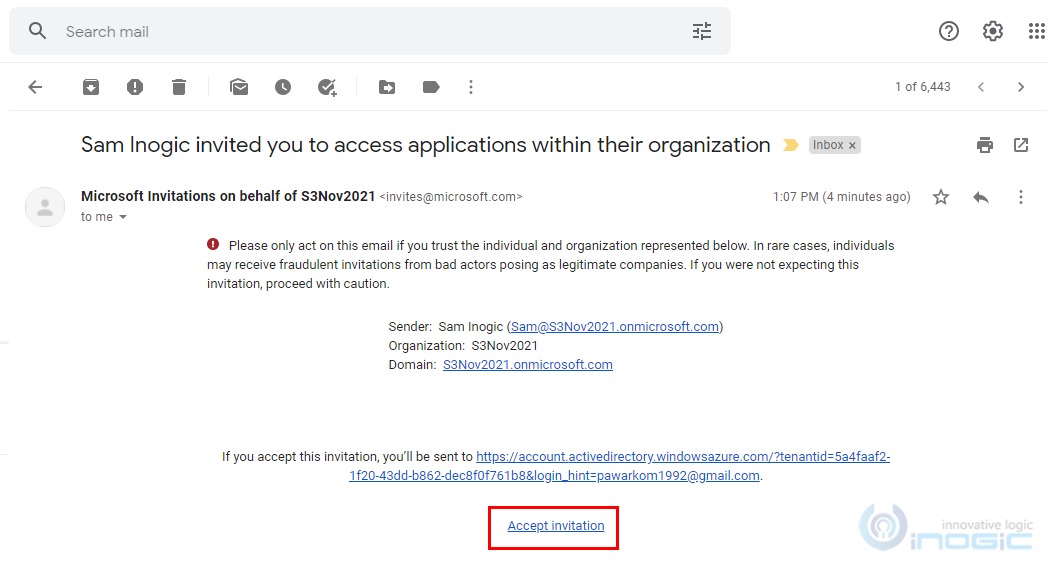
7. The guest user needs to accept the invitation received in their mailbox.

image

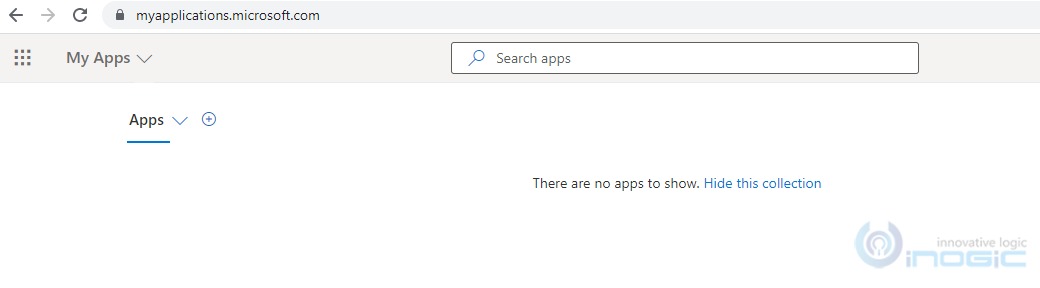
8. Once the invitation is accepted, it will redirect to below page.

image

The guest user will not get access to the CRM environment unless and until license is assigned to that user. On creation of guest, user license can’t be assigned. To assign the license to the guest user, we need to add the guest user in the group and then assign the license to the group.

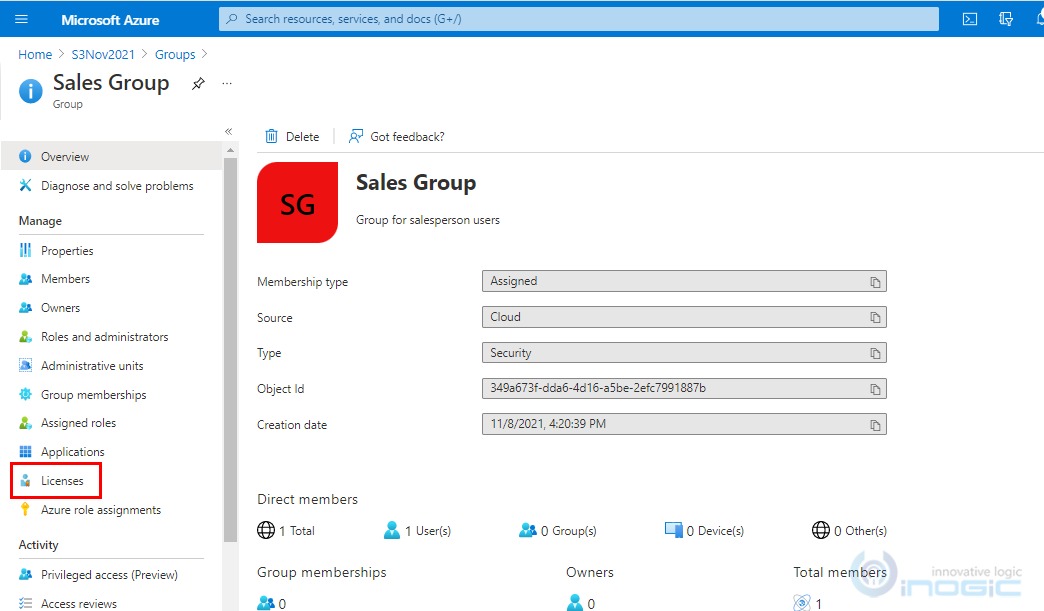
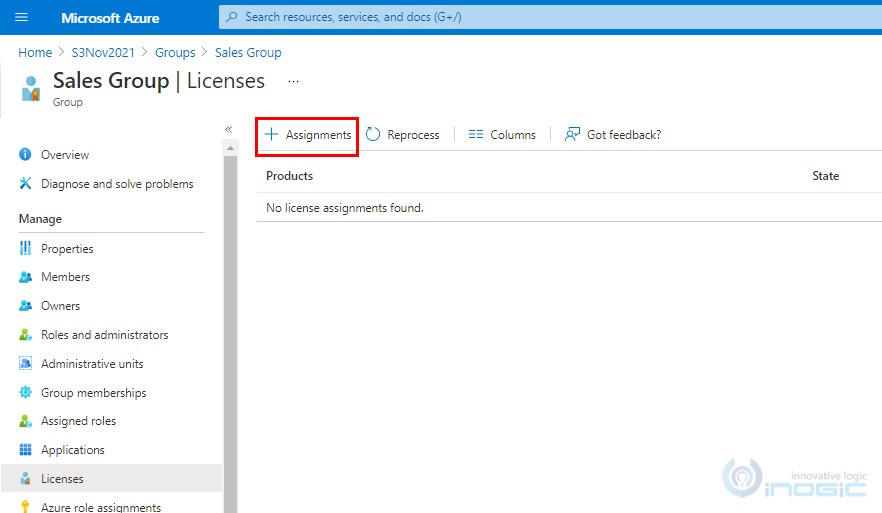
9. To assign the license for the guest user already added in the group, navigate to Azure Active Directory >> Groups >> Select the group for which you want to assign the license and then click on Licenses.

image

10. Click on + Assignments.

image

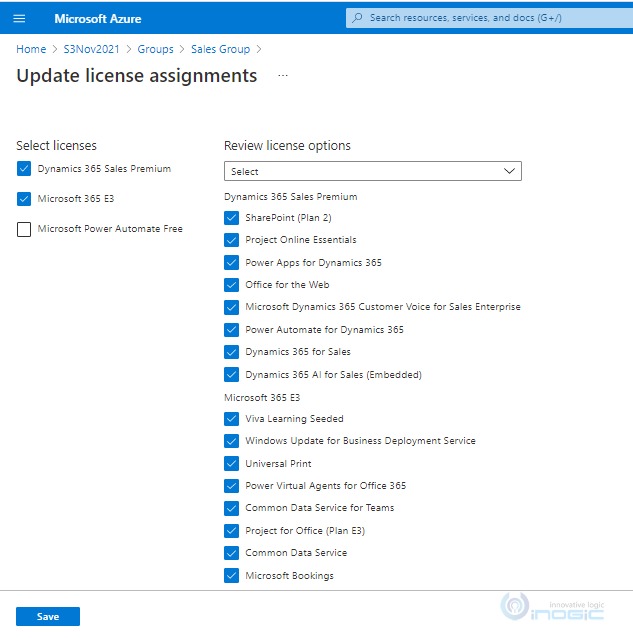
11. Select the appropriate licenses that you need to assign to the group and click on Save.

image

This way we can have guest user added in the Active directory and by creating the Teams of type AAD Security group and keeping the membership type as guest or Member’s and guest in CRM will grant access to those Members and the guest.

Here, though Members, guests and Owners are added in a single group on Azure portal, however their access depends on the Teams along with Membership type created in CRM.

If Membership Type is selected as “Members” even though the guest and owners are present in the group, they will not get access to the CRM environment only Members will get the access.

Similarly, if Membership Type is selected as “Guest” then only guest users will get access and not the Members and the owners.

Conclusion

Thus, AD groups helps to maintain security of the environment by restricting the accidental access of the environment by the users. Also, it provides an easy way of assigning security roles to the users by just providing the security role to AD Teams.