Search This Blog

Sunday, June 20, 2021

Gallery Control - How to Paginate Data

 Pagination

 When learning jQuery, various plug-in program attracted me. One of the useful plug-in program for data viewing is “Pagination”.


Today, I spare some free time and wish to share how to utilize PowerApps simple formulas to create the same function.

Formulas used in creating pagination cover only:

- If

- UpdateContext

- RoundUp & RoundDown

- CountRows

- LastN & FirstN


Screen OnVisible (Loaded) & First PageScreen OnVisible (Loaded) & First Page


Step 1


Screen:


Screen1.OnVisible:

UpdateContext({iter: 0});

UpdateContext({iter: RoundDown(Gallery1.Height/Gallery1.TemplateHeight,0)}); FirstN(Table1, iter)


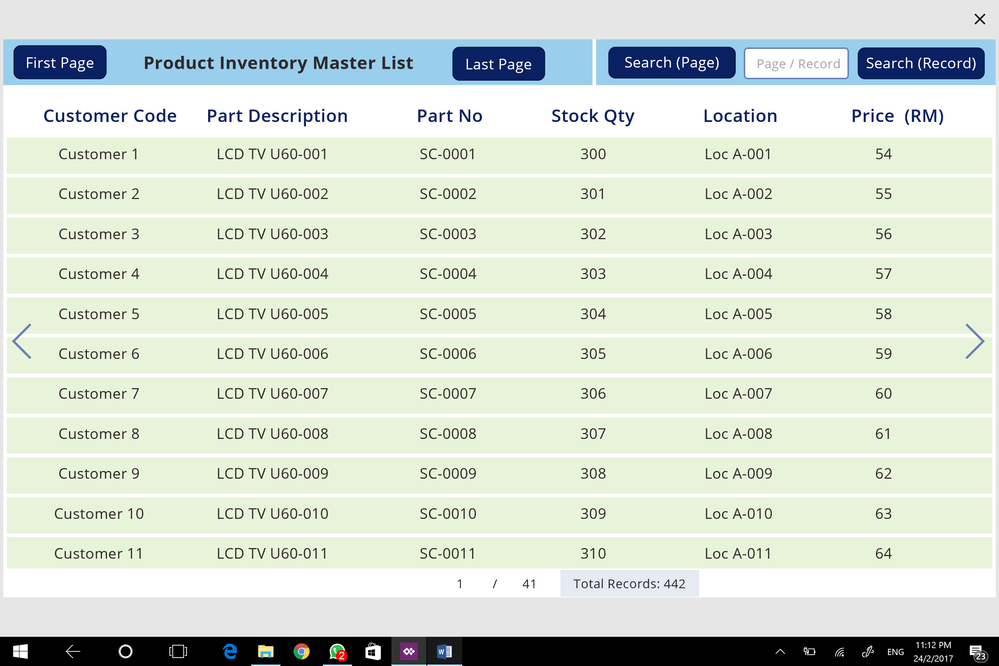
When screen is loaded, it will display Gallery with Number of Rows as determined by “RoundDown(Gallery1.Height/Gallery1.TemplateHeight,0)” using FirstN(Tale1, iter)


Data


- Add datasource to your PowerApps (I have attached complete sample PowerApps but using Static Data, so that no connection is necessary to faciliate apps learning)

- Add a Gallery, with items connected to datasource


Gallery1.Items = LastN(FirstN(Table1, iter), RoundDown(Gallery1.Height/Gallery1.TemplateHeight,0))


Note:

Gallery1.Height/Gallery1.TemplateHeight is used to calculate “Viewable Number of Rows”.

This is a dynamic formula because when you manually adjust the Gallery1 Height using mouse, the formula will calculate automatically.

The same is also used for “Calculating No. of Page”.


Step 2


Showing Page No. / Total No. Page


Page No.:

RoundUp(iter/RoundDown(Gallery1.Height/Gallery1.TemplateHeight,0),0)

Total No. of Page:

RoundUp(CountRows(Table1)/RoundDown(Gallery1.Height/Gallery1.TemplateHeight,0),0)


Step 3


Cick on First Page or Last Page are common functions.


First Page: (Use FirstN)

UpdateContext({iter: RoundDown(Gallery1.Height/Gallery1.TemplateHeight,0)}); FirstN(Table1, iter)


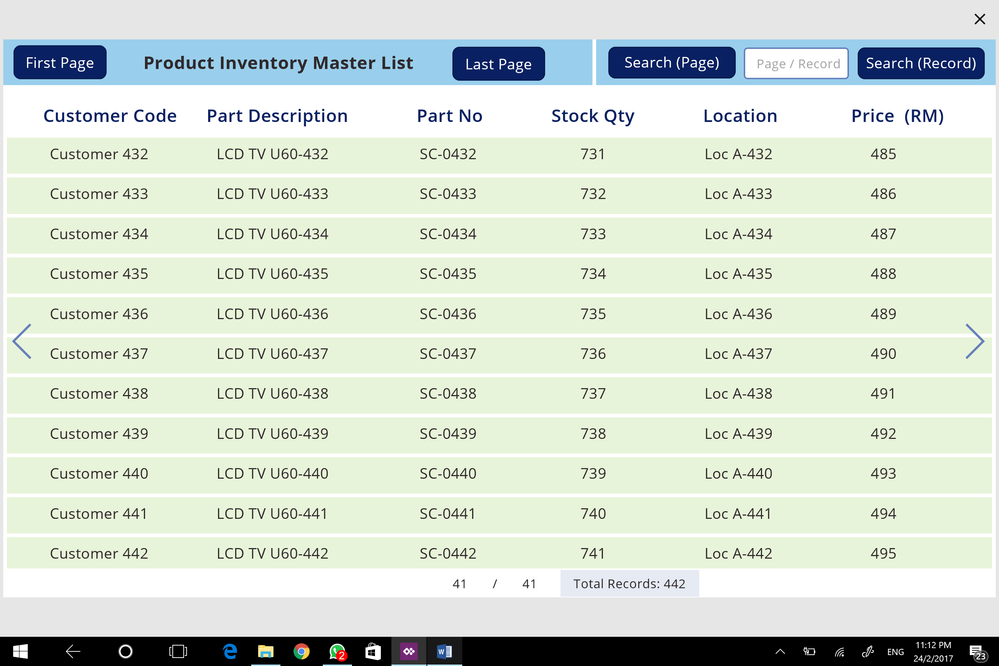
Last Page: (Use LastN)

UpdateContext({iter: CountRows(Table1)}); LastN(Table1, iter)


Last PageLast Page


Step 4


Users may opt to search by "Record" or "Page". This is a quick search method.


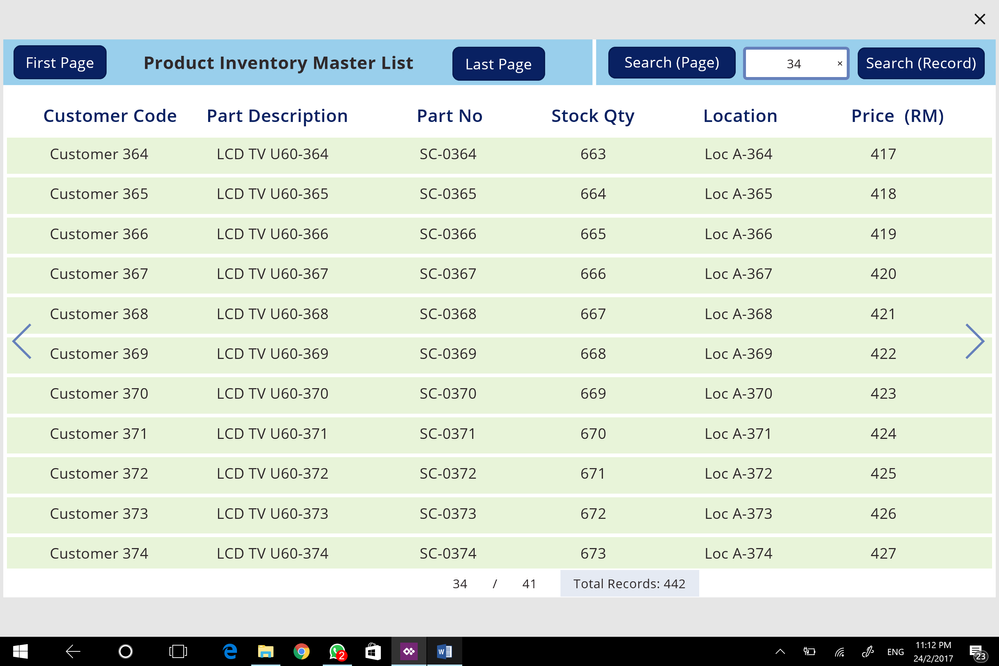
Search (Page):

If(Value(SearchInput.Text) <= RoundUp(CountRows(Table1)/RoundDown(Gallery1.Height/Gallery1.TemplateHeight,0),0), UpdateContext({iter: Value(SearchInput.Text)*RoundDown(Gallery1.Height/Gallery1.TemplateHeight,0)}))


If formula allows only searching within “Total Pages


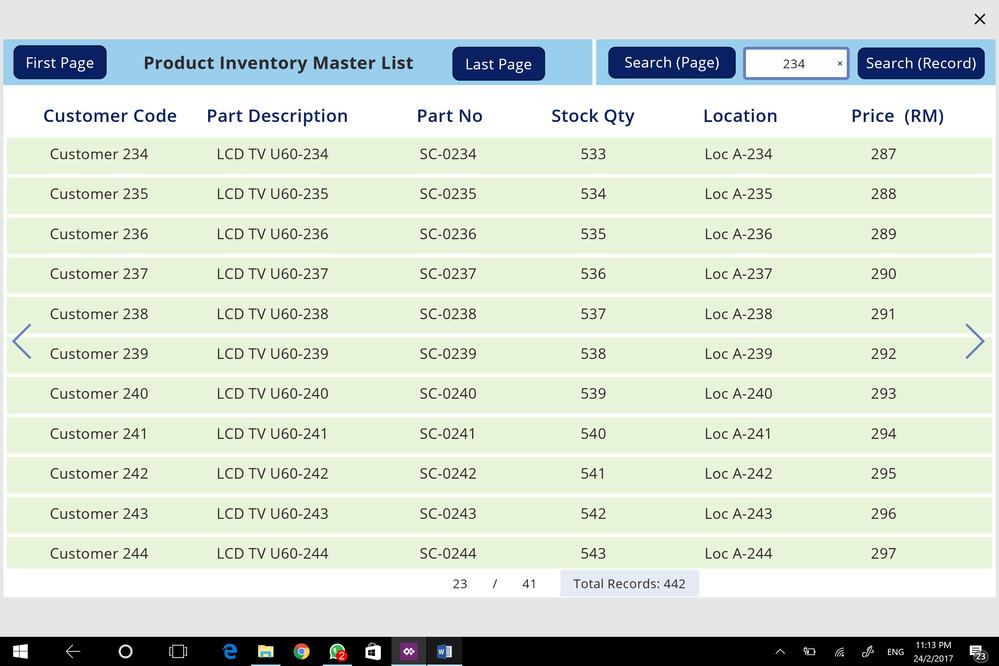
Search (Records):


If(Value(SearchInput.Text) <= CountRows(Table1), UpdateContext({iter: Value(SearchInput.Text)-1+RoundDown(Gallery1.Height/Gallery1.TemplateHeight,0)}))


If formula allows only searching within “Total Records


Search &quot;Page&quot; functionSearch "Page" functionSearch &quot;Record&quot; functionSearch "Record" function


Step 5


Next Page:

If(iter < CountRows(Table1), UpdateContext({iter:If(iter < CountRows(Table1), iter+RoundDown(Gallery1.Height/Gallery1.TemplateHeight,0))}))


If formula will detect if the record has “Come to the End of Records” based on iter < CountRows(Table1)


Previous Page:

If(iter < 2*RoundDown(Gallery1.Height/Gallery1.TemplateHeight,0), UpdateContext({iter: RoundDown(Gallery1.Height/Gallery1.TemplateHeight,0)}); FirstN(Table1, iter), UpdateContext({iter:iter-RoundDown(Gallery1.Height/Gallery1.TemplateHeight,0)}))


If formula will detect if the record has “Come to the First Record” based on iter < 2*RoundDown(Gallery1.Height/Gallery1.TemplateHeight,0)


References:

 http://powerappsguide.com/blog/post/gallery-control---how-to-paginate-data

 https://powerusers.microsoft.com/t5/Power-Apps-Community-Blog/Pagination-Features-Esp-for-PC-or-Tablet-Mode/bc-p/116541#M256


Top 5 reasons to choose PowerApps

 With so many other mobile development tools on the market, why choose PowerApps? Here are 5 compelling features.

  1. PowerApps requires no programming experience. It provides a graphical designer that we can use to visually build our apps. PowerApps is based on Excel and the designer includes a formula bar, just like Excel. The language that PowerApps uses shares many of the same function names with Excel. Therefore if you know how to use Excel, you'll feel familiar with PowerApps.
  2. We can easily access company data sources from within PowerApps. Businesses frequently store data in SharePoint or SQL servers inside internal company networks. We can access this data by installing a gateway program on a computer inside the internal network. This provides a simple, non-programmatic way to make internal company data accessible from the mobile apps that we create.
  3. Simple deployment. We can make our apps available to end users through the sharing and publishing features in PowerApps. Compared to other methods of mobile development, there's no need to register for iOS developer accounts, obtain security certificates, or work out how to deploy Android APKs to devices.
  4. PowerApps provides access to hardware features on mobile devices, such as location services and cameras. We can retrieve the GPS location of a device, as well as compass and acceleration values. PowerApps also provides a pen control to capture signatures, and also provides barcode recognition capabilities.
  5. Finally, PowerApps provides lots of rich features, such as the ability to display charts, maps, and videos. We can also access a wide range of cloud services which includes services from Google, Adobe, Salesforce, and many other third party companies.

Delegation - How to overcome the 500/2000 Row Limit with Collections

 At some stage, most of us will encounter the need to overcome the row limits for non-delegable queries. This is necessary to provide data aggregation for reports and charts, allow better searching of data with more specific search criteria, and many other reasons.


The best reference guide for this is Mr Dang's post here:


In this excellent post, Mr Dang describes how to use a ForAll loop to collect records into a local collection in batches of 500. You can find a full description of how to implement this technique in Mr Dang's post, but here's a brief extract. Well done Mr Dang!

UpdateContext({firstrecord: First(datasource)});
UpdateContext({lastrecord: First(Sort(datasource,RecordId,Descending))});
UpdateContext({maxiter: RoundUp((lastrecord.RecordId-firstrecord.RecordId)/500,0)});

ClearCollect(iter,
	AddColumns(AddColumns(Filter(HundredChart,Number<=maxiter),"min",(Number-1)*500),"max",Number*500)
);

Clear(datasource_temp);
ForAll(iter,
	Collect(datasource_temp,
		Filter(datasource,RecordId>=firstrecord.RecordId+min && RecordId<firstrecord.RecordId+max)
	)
)

You can find other useful details of this topic in the posts here:


                                                 Or Another Article of Delegation  

This solution makes it possible for you to avoid making a column that calculates which block of 500 a record belongs to (I previously used a column called n). I made my formulas based on a CDS entity and performed calculations on the default RecordId field which is a Big Integer. I previous was using PrimaryId, since it was small numbers starting at 1, but the problem is that it is handled as text. RecordId is a value at least.


UpdateContext({firstrecord: First(datasource)});
UpdateContext({lastrecord: First(Sort(datasource,RecordId,Descending))});
UpdateContext({maxiter: RoundUp((lastrecord.RecordId-firstrecord.RecordId)/500,0)});

ClearCollect(iter,
	AddColumns(AddColumns(Filter(HundredChart,Number<=maxiter),"min",(Number-1)*500),"max",Number*500)
);

Clear(datasource_temp);
ForAll(iter,
	Collect(datasource_temp,
		Filter(datasource,RecordId>=firstrecord.RecordId+min && RecordId<firstrecord.RecordId+max)
	)
)


There are three parts:


1. Determine the first record (firstrecord), the last record (lastrecord). Subtracting their RecordId value and dividing it by 500 determines how many times you would need to perform iterations (maxiter). The firstrecord's RecordId will be used as a reference for pulling in records later.


UpdateContext({firstrecord: First(datasource)});
UpdateContext({lastrecord: First(Sort(datasource,RecordId,Descending))});
UpdateContext({maxiter: RoundUp((lastrecord.RecordId-firstrecord.RecordId)/500,0)});


2. Make a static table of whole numbers [1, 2, 3, ... 100 or whatever you want]. Filter it to use as the argument in ForAll later. It will give instructions to ForAll on how many times to "loop." So if in step 1, you determined that your number of iterations (maxiter) was 3, then the formula would Filter all whole numbers less than and equal to 3.


Note: my formula below is messy. I am using an existing table I have that only has a column with whole numbers. I had to add columns for the minimum 500 and upper 500 using AddColumns(). You may opt to make those columns in your table so it does not need to be calculated every time. I figure it's a small calculation so it's not a big deal.


ClearCollect(iter,
	AddColumns(AddColumns(Filter(HundredChart,Number<=maxiter),"min",(Number-1)*500),"max",Number*500)
);


3. The last part is where the formula pulls in records. First it clears the temporary collection (datasource_temp) that is used for holding the records. ForAll will pull in 500 records at a time for each whole number you Filtered in step 2. So if you have 3 whole numbers in the iter Collection (maxiter=3), then ForAll will pull in:

  • all records with RecordId>=firstrecord.RecordId+0 and RecordId<firstrecord.RecordId+500
  • all records with RecordId>=firstrecord.RecordId+500 and RecordId<firstrecord.RecordId+1000
  • all records with RecordId>=firstrecord.RecordId+1000 and RecordId<firstrecord.RecordId+1500
  • then it will stop because there are no other whole numbers in the "iter" Collection.


Clear(datasource_temp);
ForAll(iter,
	Collect(datasource_temp,
		Filter(datasource,RecordId>=firstrecord.RecordId+min && RecordId<firstrecord.RecordId+max)
	)
)


                    Or Another Article of Delegation  

Now that I've had some time to play with ForAll, I have a more elegant solution for pulling in 500 records at a time for reading. I still do not have a good solution for writing though. For this to work, you will still need a column in your Entity which describes which set of 500 it belongs to.


Big idea: 

  1. Find out what the maximum n value is that describes how many sets of 500 you have. The formula I included also repairs the datasource if the last entry did not correctly have an n recorded.
  2. Create a dummy collection that includes whole numbers that are less than or equal to the n value you found in step 1.
  3. Use the dummy collection in step 2 as an argument in ForAll--"For each n in the dummy table, collect the 500 records from the datasource which are equal to that n."


UpdateIf(datasource,IsBlank(n),
	{n: RoundDown(Value(PrimaryId)/500,0)+1
	}
);

UpdateContext({maxn: First(Sort(datasource,PrimaryId,Descending))});

ClearCollect(iter,
	Distinct(Filter(HundredChart,Num<=maxn.n),Num)
);

Clear(datasource_temp);

ForAll(iter,
	Collect(datasource_temp,
		Filter(datasource,n=Result)
	)
)

This can be done in a Button, Toggle, Timer, or whatever you want to trigger.


The only requirement is that you create a Table of whole numbers in a column [1,2,3,4,5, etc.] from which to pull your dummy collection. You can connect it to PowerApps as static data. I just used an existing "Hundred Chart" from a datasource I already connected. I do not know another way of making a collection with such whole number sets.


EDIT: Unfortunately, you will need to create an n value in your entity. I tried the following formula to try working around writng a column for n, but it has service limitations:


ForAll(iter,
	Collect(datasource_temp,
		Filter(datasource,(RoundDown(Value(PrimaryId)/500,0)+1)=Result)
	)
)


EDIT2:

Since UpdateIf does not delegate, you will not be able to fix all n that are blank. Instead, when writing a record, write n as 0 instead of blank so you can fix it. The change below can only fix the last record and may miss any others that do not have an n.

UpdateContext({maxn: First(Sort(datasource,PrimaryId,Descending))});

If(IsBlank(maxn.n) || maxn.n=0,
Patch(datasource,First(Filter(PrimaryId=maxn.PrimaryId)), {n: RoundDown(Value(maxn.PrimaryId)/500,0)+1 } )
UpdateContext({maxn: First(Sort(datasource,PrimaryId,Descending))})
); ClearCollect(iter, Distinct(Filter(HundredChart,Num<=maxn.n),Num) ); Clear(datasource_temp); ForAll(iter, Collect(datasource_temp, Filter(datasource,n=Result) ) )

Saturday, May 1, 2021

Power Apps Patch Function Examples For Every SharePoint Column Type

 Power Apps Patch function examples by SharePoint column type:


This column type cannot use PATCH however there is a workaround:


There is no way to PATCH these column types:

  • Calculated Column
  • External Data Column
  • Location Column

Abouts, PowerApps Collections

 Basic Examples


Selecting Collections Examples


Summarizing Collections Examples


Transforming Collections Examples


Exporting Collections Examples


Saturday, April 24, 2021

Top 25 Tricks and Tips in Power Automate


  1. 1-      # Flow Tops :(5 Type of Flow-Automate, Instant, scheduled, Business process, UI Flow).
  2. 2-      # Flow Template :(Various of Flow Template used Them).
  3. 3-      #Creating Flow (skip trigger): When go create click the trigger name after you can see.
  4. 4-      # Connecter.
  5. 5-      # Rename the action: so flow is improving readability and visibility.
  6. 6-      # Add Comment in your Action.
  7. 7-      # Copy and Paste Actions.
  8. 8-      # Use Scope Action: it is very power full group action to organized flow. Note: within the scope you can declare the variable. Declare out of scope only.
  9. 9-      # Composed VS Variables: (compose define any type variable, faster than variable, composed variable value never can be change it like static variable, Variable value change anywhere in flow)
  10. 10-  # Expressions and Experimental Features: (Experimental Features is enable from setting so that you can see more space in Composed variable section)
  11. 11-  # Flow Run URL: (How to generate URL from flow run)
  12. 12-  # Trigger Conditions: (When record is created the revenue value >5000) the work flow is run)
  13. 13-  # Peek Code: Behind the code of any action here you can see all expression.
  14. 14-  # Apply to each Concurrency: To overcome taken time by Apply to each loop come concurrency control (for each loop executed sequentially by default to overcome the default setting to customize the degree of parallelism). Go to setting of Apply to each loop enable the concurrency control set the time as for you required. Maximum 50 loop of action execute concurrently.
  15. 15-  # Format Number: When you dealing the Number One Action is Format Number (here some by default format and also make custom format).
  16. 16-  # Date Time Format & Convert Time Zone.
  17. 17-  # Data Operation. There several data format of function (etc. compose.).
  18. 18-  # Parallel Branches: You can run action parallel as well.
  19. 19-  # Error Handling: Configure Run after properties for action setting and also maintain Try Catch block with help of Scope.
  20. 20-   # Flow Checker: Flow checker is basically your friend which identified the error and warning.
  21. 21-  # Test Flow: You can see here all flow status.
  22. 22-  Add Additional Flow Owners: We can make the another owners of flow. Owner of flow will have full access of all connection in the flow and content within the connected account
  23. 23-  # Export and Import Flow: Here the option to export and import yours automate context of exported or imported user
  24. 24-  # Flow Run duration is 30 days: My Flow by default tome 30 day. after 30 days’ work timeouts the step. If you have approval process, you want to send notification after each 15 days. Go Action setting here Timeout As define (Example P1D,P15D) and send notification as well .
  25. 25-  # Flow run History is 28 days: General Data Protection Regulation (GDPR) requires us to keep run logs for no longer than 28 days. To maintain a longer history, you'll need to manually capture run histories before they are deleted. All My History can be download ad CSV Format.

 References : https://www.youtube.com/watch?v=8O68-cc-QNo